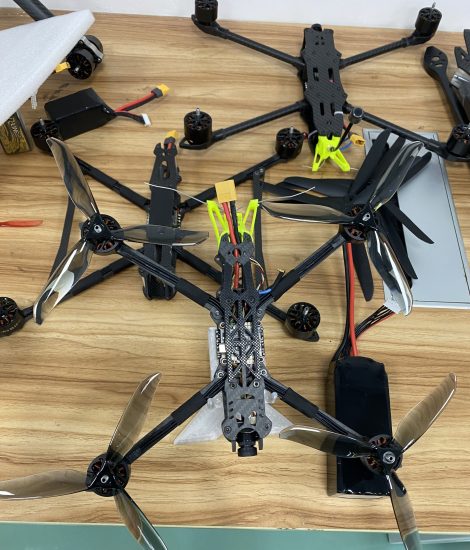



A firmware update is important for improving performance, fixing bugs, and adding new features. However, sometimes the update process may fail or get stuck. This is usually caused by connection issues, low battery, or app problems—not serious hardware damage. Below is a clear guide to help you fix it safely.
1. Check Battery Level First
Low power is one of the most common reasons for update failure.
Before updating, ensure:
- Drone battery is at least 50–70% charged
- Remote controller (if required) also has sufficient power
- Device will not shut down during update
If power is low, the update may stop halfway and cause errors.
2. Ensure a Stable Internet Connection
Firmware files require a stable download process.
What to avoid:
- Weak Wi-Fi signal
- Mobile data switching during update
- Public or unstable networks
Solution:
- Use a strong and stable Wi-Fi connection
- Stay close to the router during download
- Do not switch networks mid-update
3. Do Not Interrupt the Update Process
Interrupting the update can cause system failure.
Important rules:
- Do not turn off the drone
- Do not close the app
- Do not disconnect the controller
Even a small interruption can cause update failure or system errors.
4. App or Firmware Version Conflict
Sometimes the app version is not compatible with the firmware update.
Fix:
- Update the drone app to the latest version
- Restart the app before updating
- Try reinstalling the app if problems continue
Keeping the app updated ensures compatibility with new firmware.
5. Storage or Memory Issues
Some drones require temporary storage space during updates.
What to check:
- Clear unnecessary cache in the app
- Ensure SD card (if used) is not full or corrupted
- Remove and reinsert SD card if needed
Insufficient storage can stop the update process.
6. Restart and Retry the Update
A simple restart can often fix update errors.
Steps:
- Turn off drone and controller
- Restart mobile device
- Reopen the app and try again
Many failed updates are resolved on the second attempt.
7. Factory Reset (Last Option)
If the update keeps failing, a reset may help.
Use carefully:
- Restore drone to factory settings via app
- Re-pair controller after reset
- Try firmware update again
This removes potential software conflicts.
Quick Firmware Update Checklist
Before updating, always confirm:
- Battery is sufficiently charged
- Stable Wi-Fi connection is available
- App is updated to latest version
- No interruptions during process
- Enough storage space is available
FAQ
Why did my drone firmware update stop halfway?
Most likely due to weak battery, unstable internet, or app interruption.
Can I fly if the update failed?
Yes, but it is recommended to retry the update before flying again.
Will a failed update damage my drone?
In most cases, no. You can usually fix it by restarting and updating again.


No comments yet