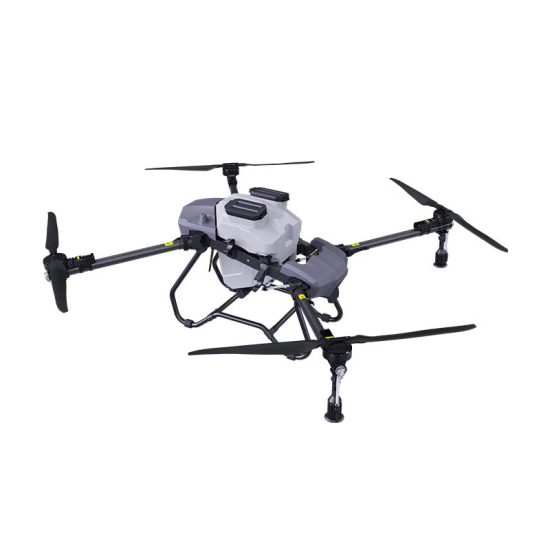


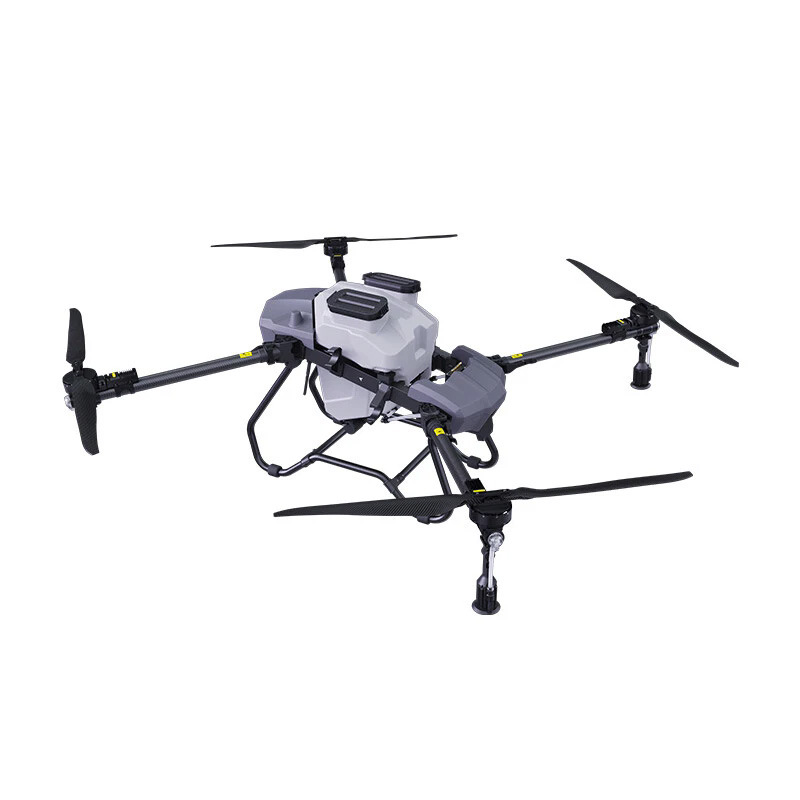
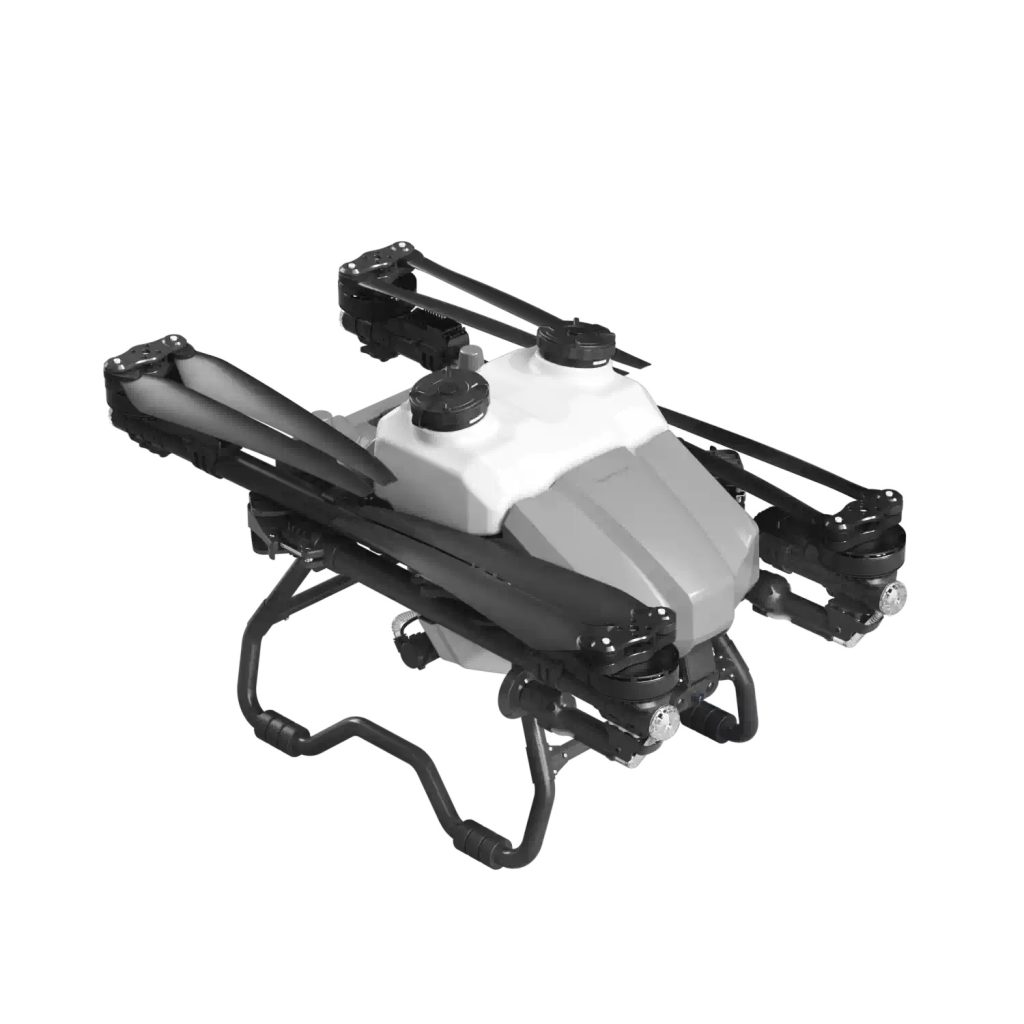
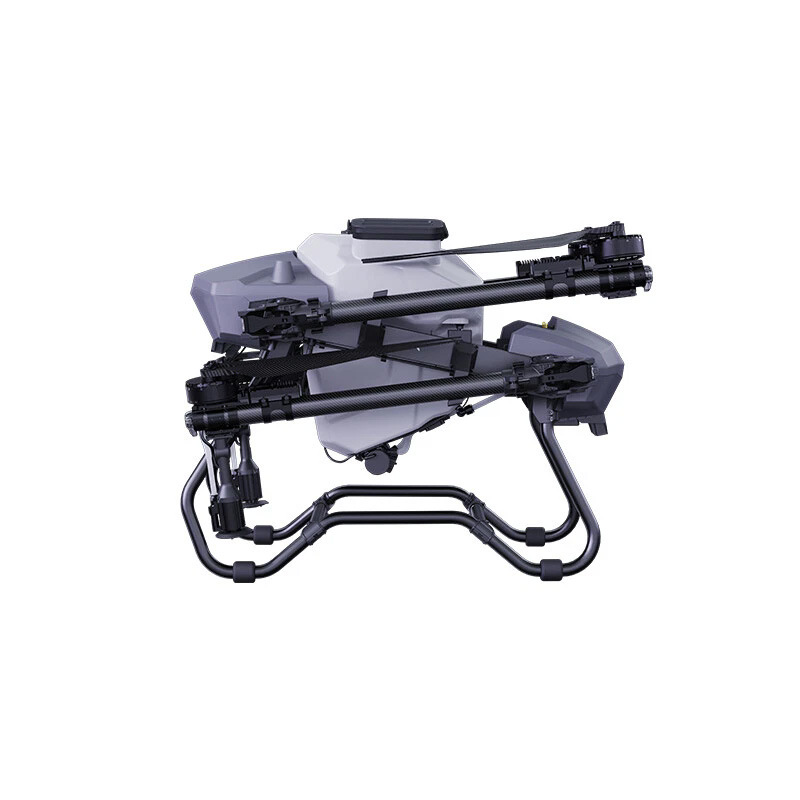
Firmware is the core software system of Msoen drones. Regular updates help improve flight stability, enhance spraying accuracy, fix bugs, and add new features.
This guide explains how to safely update firmware and what to do if an update fails.
2. Why Firmware Updates Are Important
Updating your drone firmware helps:
- Improve flight stability and GPS accuracy
- Fix known system bugs
- Optimize spraying performance
- Enhance safety features (such as Return-to-Home)
- Support new app functions
It is recommended to check for updates regularly.
3. Preparation Before Updating
Before starting the update process:
- Ensure drone battery is above 60% (recommended 80%+)
- Fully charge remote controller
- Connect to stable internet (Wi-Fi recommended)
- Do not power off devices during update
- Ensure Msoen app is updated to latest version
4. Firmware Update Steps
Step 1: Open Msoen App
Launch the Msoen drone control application and connect your device.
Step 2: Check for Updates
Go to:
- Settings → Firmware Update → Check Version
Step 3: Start Update
- Tap “Update Now”
- Download firmware package
- Wait for automatic installation
Step 4: Wait for Completion
- Do not interrupt power supply
- Drone may restart automatically
- Confirm update success in app
5. Common Firmware Update Problems
Problem 1: Update fails or stops halfway
Possible causes:
- Weak internet connection
- Low battery
- App interruption
Solutions:
- Reconnect to stable Wi-Fi
- Recharge battery and retry
- Restart app and retry update
Problem 2: Drone not responding after update
Possible causes:
- Firmware installation incomplete
- System restart delay
Solutions:
- Restart drone and controller
- Reconnect via app
- Reinstall firmware if needed
Problem 3: Version mismatch warning
Possible causes:
- Controller and drone not updated together
Solutions:
- Update both drone and remote controller firmware
- Ensure app version is also latest
6. Important Safety Notes
- Never power off devices during update
- Do not fly drone immediately after update without testing
- Always test hover before full operation
- Keep firmware consistent across all devices
FAQ
Q1: How often should I update firmware?
A: Check monthly or whenever the app notifies an update.
Q2: Will updating firmware erase my settings?
A: Most settings remain, but it is recommended to recheck configurations.
Q3: Can I downgrade firmware?
A: Not recommended unless instructed by technical support.
Q4: Why does update take so long?
A: Large firmware files and system verification may require time.


No comments yet