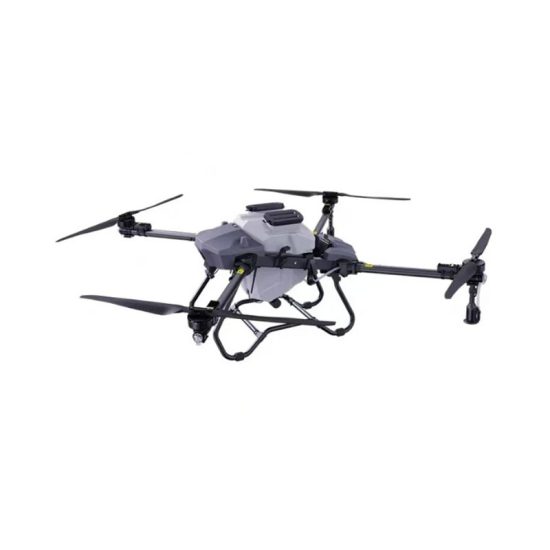


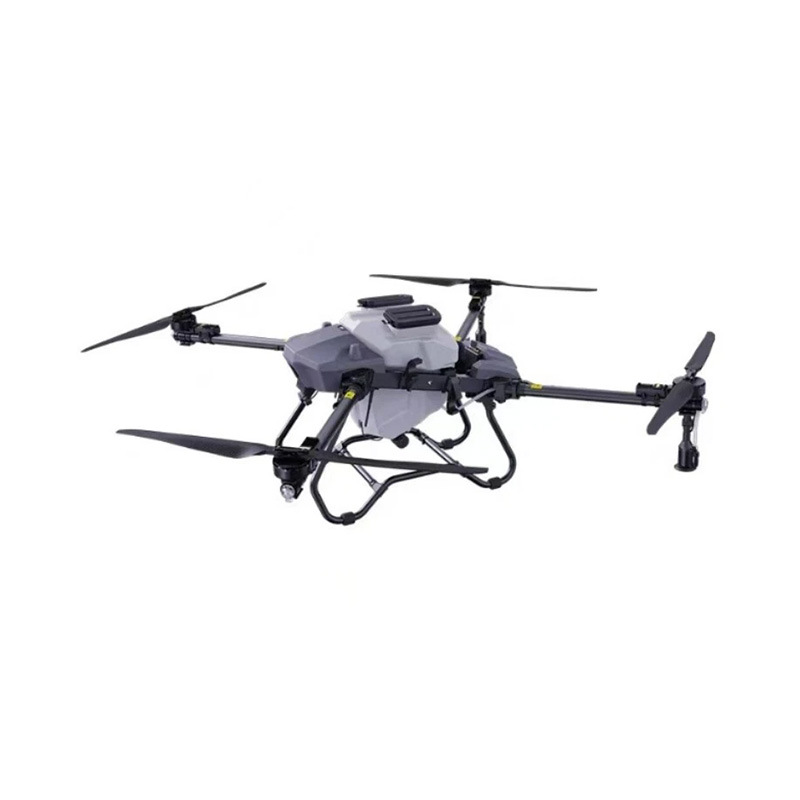
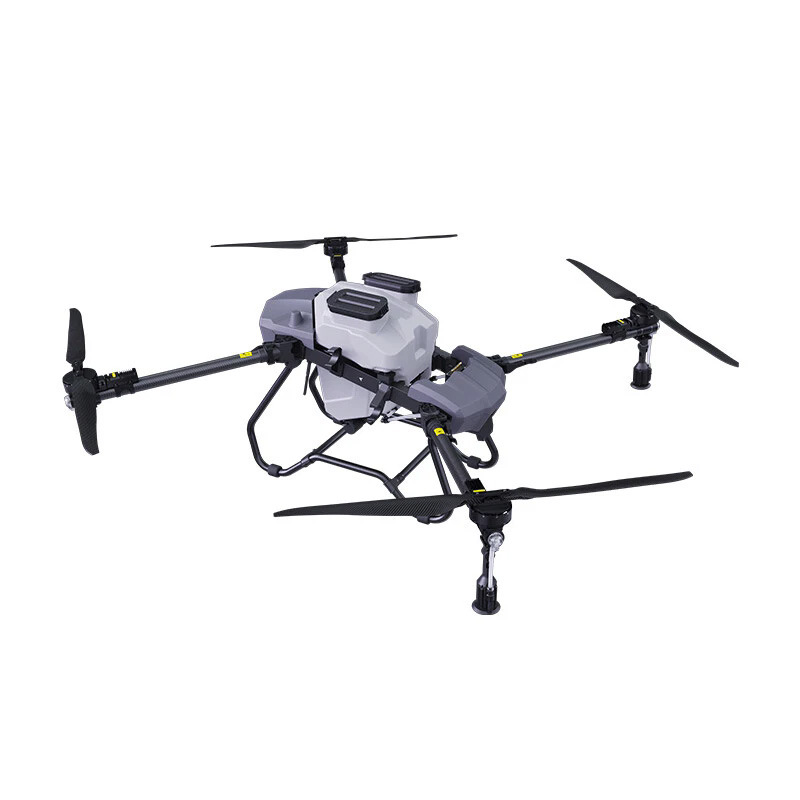
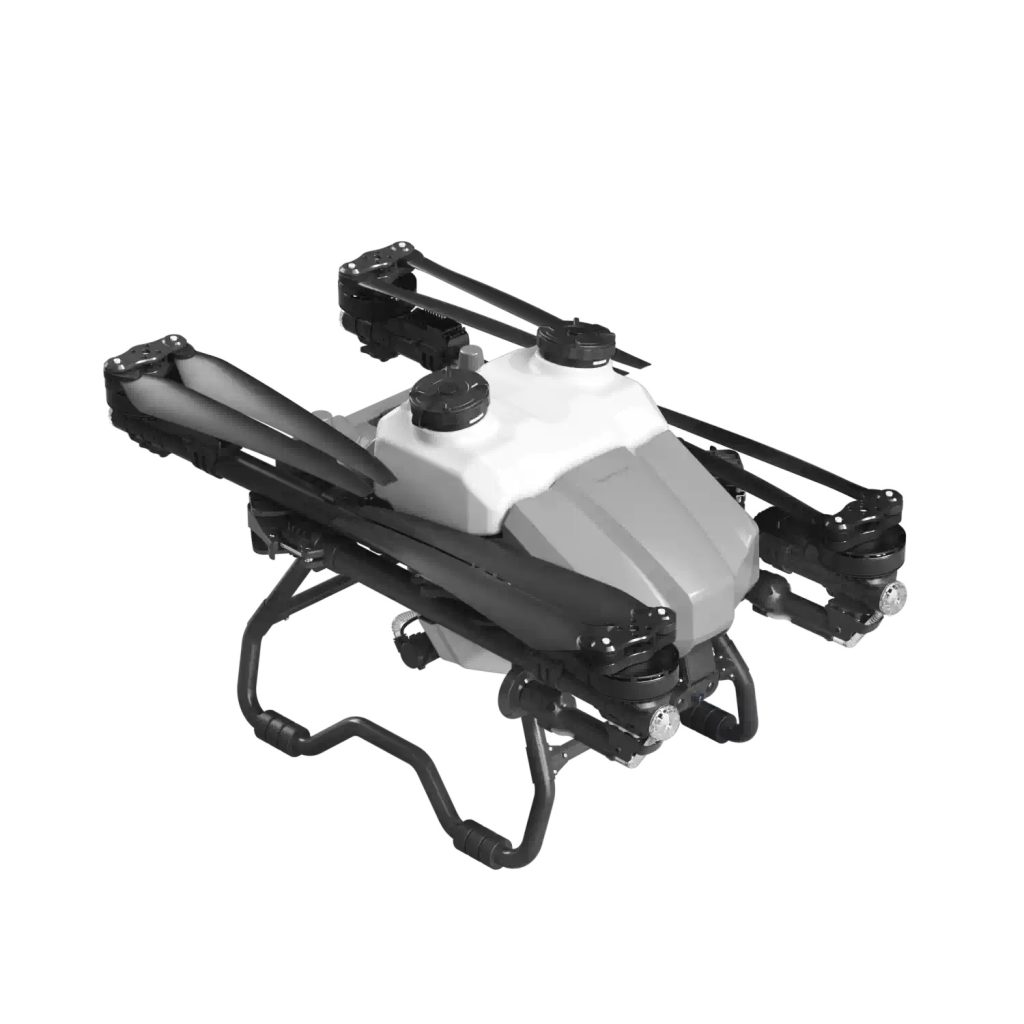
Setting up a drone for the first time can feel complicated, especially for new users. However, most modern UAV systems follow a similar setup process. This guide will walk you through the complete first-time setup process, from unboxing to first flight, so you can safely and correctly operate your drone.
1. Unboxing and Checking All Components
Before starting, carefully open the package and make sure all parts are included.
Typical drone package includes:
- Drone body (aircraft)
- Remote controller
- Battery (or multiple batteries)
- Propellers (and spare propellers)
- Charger
- USB cable or data cable
- User manual
👉 If any part is missing or damaged, do not power on the drone and contact support immediately.
2. Charging the Battery Before Use
A fully charged battery is required before the first flight.
Steps:
- Connect the battery to the charger
- Plug into a stable power source
- Wait until indicator lights show full charge
Safety tips:
- Do not charge near flammable materials
- Do not overcharge
- Use only official charger
3. Installing the Propellers Correctly
Propellers are very important for safe flight.
Installation rules:
- Match “A” and “B” propellers correctly
- Tighten screws firmly
- Ensure blades are not loose
👉 Incorrect installation may cause the drone to flip or fail to take off.
4. Installing the Battery into the Drone
- Slide the battery into the compartment
- Ensure it clicks into place
- Check that it is securely locked
A loose battery can cause power failure during flight.
5. Turning On the Drone and Remote Controller
Correct startup order is important:
Recommended sequence:
- Turn on the drone
- Turn on the remote controller
- Wait for signal pairing
👉 Some drones may require app connection before full activation.
6. Connecting to the Mobile App (If Required)
Many modern drones require app control.
Steps:
- Download the official app
- Enable Bluetooth or WiFi
- Connect drone signal
- Follow pairing instructions
Common issues:
- Wrong WiFi connection
- App not updated
- Weak signal
7. GPS Signal Calibration
For stable flight, GPS must be locked.
How to do it:
- Go outdoors to an open area
- Avoid buildings and trees
- Wait until GPS signal becomes stable (usually 6–12 satellites)
👉 Without GPS, the drone may drift or become unstable.
8. Compass Calibration (Very Important)
Compass calibration ensures correct flight direction.
Steps:
- Open calibration mode in app or controller
- Rotate drone horizontally 360°
- Rotate vertically 360°
- Wait for success confirmation
⚠️ Do not calibrate near metal objects or vehicles.
9. Pre-Flight Safety Check
Before taking off, always check:
- Battery level is above 50%
- Propellers are tight
- GPS signal is stable
- No wind or strong interference
- Area is open and safe
10. First Takeoff Test
Recommended method:
- Use auto takeoff button (if available)
- Or slowly push throttle stick upward
Keep the drone hovering at 1–2 meters first to test stability.
11. Basic Flight Controls
- Left stick: Up/down (altitude), rotate left/right
- Right stick: Forward/backward, left/right movement
Practice slowly before performing advanced maneuvers.
FAQ (Frequently Asked Questions)
Q1: Why won’t my drone take off?
A: Common reasons include:
- Low battery
- GPS not locked
- Propellers installed incorrectly
- Safety lock not disabled
Q2: Why does the drone drift in the air?
A: Usually caused by:
- Weak GPS signal
- Compass not calibrated
- Wind interference
Q3: Do I need an app to fly the drone?
A: Some drones require apps for full features like camera control, GPS mode, and mapping. Basic flight may still work without it.
Q4: How long should I charge the battery?
A: Typically 60–120 minutes depending on battery capacity.
Q5: Can I fly indoors?
A: It is not recommended because GPS cannot lock and flight stability may be reduced.
Conclusion
Proper first-time setup is essential for safe and stable drone operation. By following these steps—charging, calibration, GPS setup, and safety checks—you can significantly reduce flight risks and improve performance.
If your drone still does not work correctly after setup, it is recommended to contact technical support for further assistance.


No comments yet